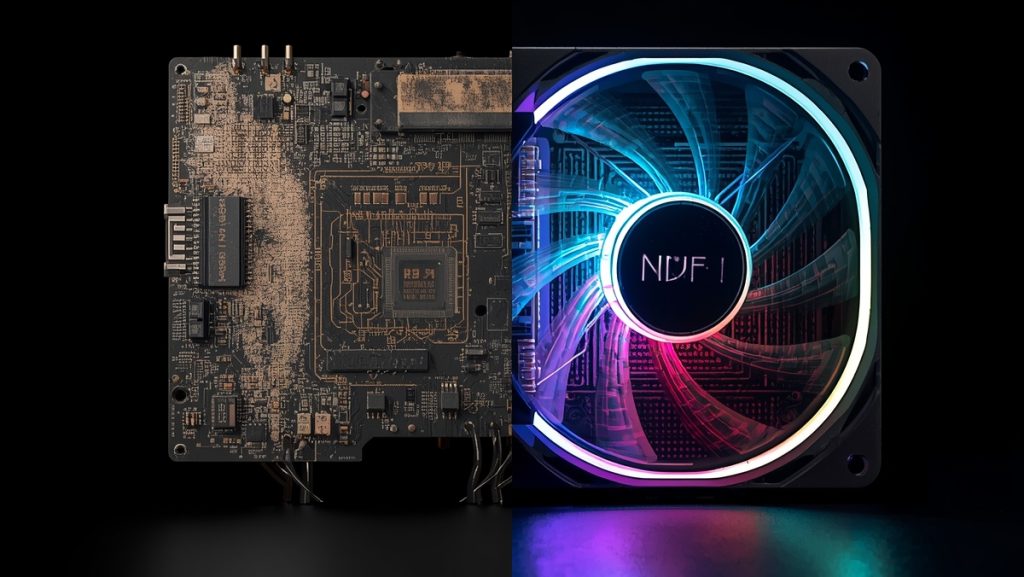
If your PC suddenly goes from “buttery smooth” to “why does this feel like a PowerPoint presentation?”, there’s a good chance your system is thermal throttling.
Thermal throttling is basically your CPU or GPU yelling: “Hey, buddy, I’m too hot for this. I’m slowing down before I die.”
The good news? You can fix it. Here’s a foolproof checklist.
1. Check temps first (obviously)
This is step zero. You need to know what’s actually happening before you can fix it.
Temperature thresholds:
CPU 90°C+ = Definitely throttling
GPU 85°C+ = Likely throttling
Anything above that = You’ve got a problem
Download a monitoring app:
- HWiNFO64 (detailed, accurate, free)
- MSI Afterburner (great GPU monitoring)
- Core Temp (simple, CPU-focused)
Watch your temps while gaming for 5-10 minutes. Take a screenshot if they spike. You need hard data.
2. Is your case airflow trash?
Most throttling comes from one simple problem: your PC can’t breathe. Your case might look fine, but airflow is everything.
Your PC needs:
- At least ONE front intake fan (pulls cool air in)
- At least ONE rear exhaust fan (pushes hot air out)
- Clean dust filters (not clogged)
- Cable management that doesn’t block airflow (cables shouldn’t dam things up)
Quick test: Open your PC. Put your hand near the rear exhaust fan. Feel warm air? Good. Feel nothing? Your airflow is dead.
3. Clean your fans and heatsinks
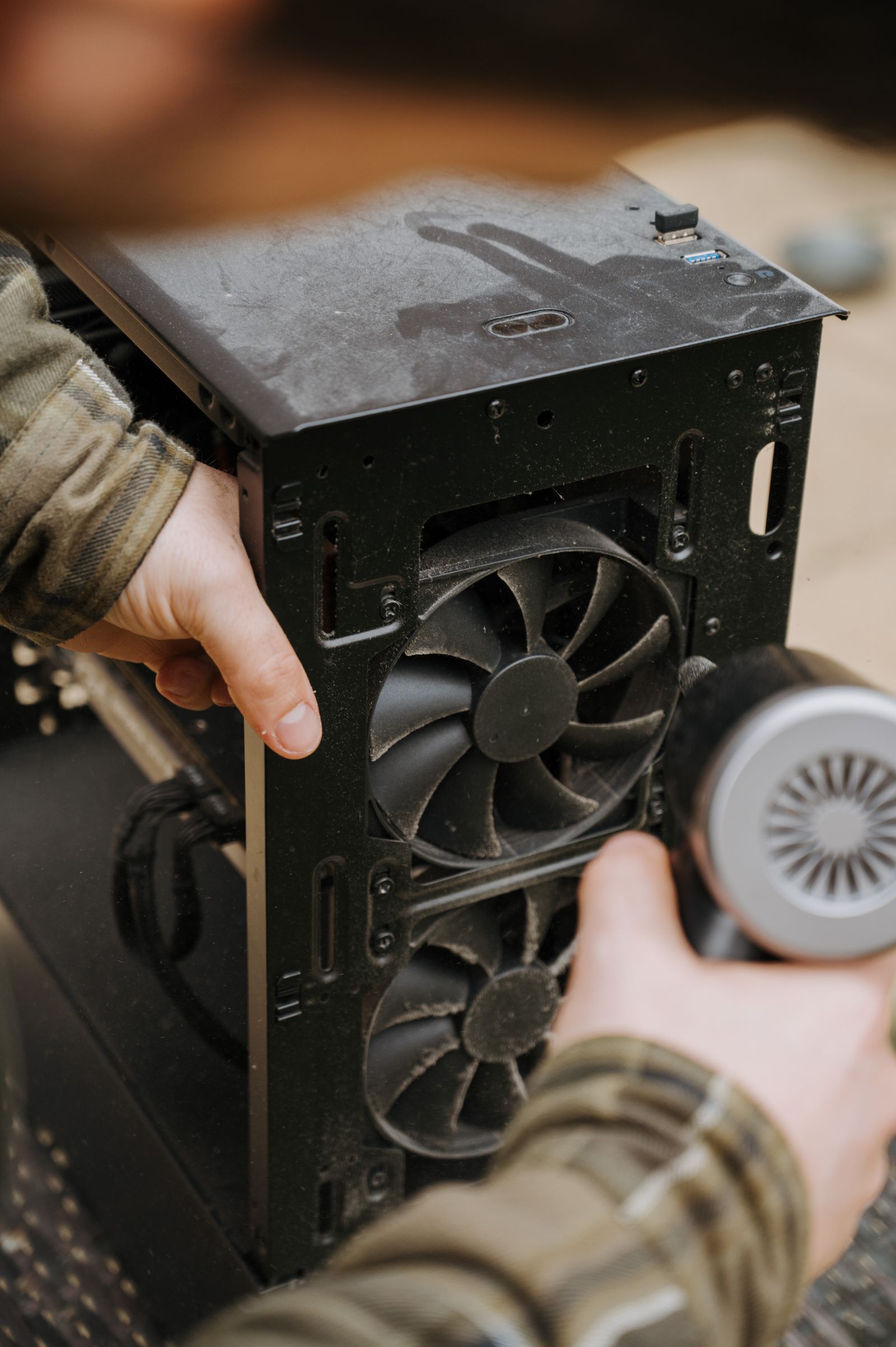
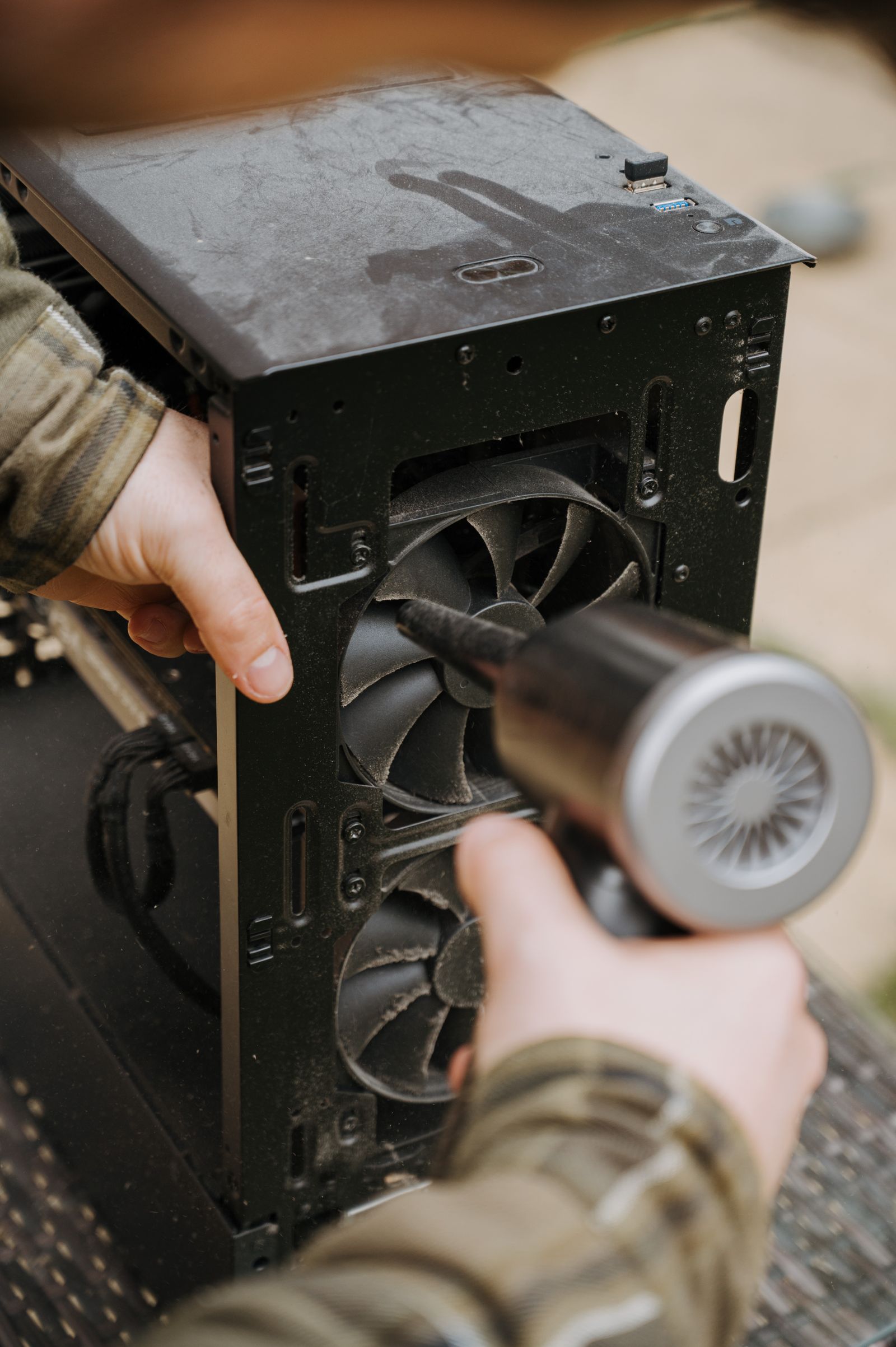
Dust is the silent FPS killer. Fans clogged with dust can’t move air. Coolers caked in dust can’t transfer heat.
Real story: I once saw a PC where the CPU cooler looked like it was wearing a wool sweater. Literally couldn’t see the fins. We cleaned it. Temps dropped 15°C instantly. FPS went from 60 to 100+.
How to clean (right way):
- Power off and unplug the PC
- Use compressed air or a can of air duster
- Spray perpendicular to the fan blades (don’t let them spin freely)
- Get the dust out of case corners and cables
- Use a soft brush for stubborn dust on heatsink fins
Do this every 6-12 months depending on your environment.
4. Check your thermal paste
Thermal paste is what connects your CPU/GPU to the cooler. If it’s old, dry, uneven, or barely making contact, you’re losing massive cooling performance.
Signs your paste is done:
- PC is a few years old (paste degrades over time)
- You recently installed a cooler in a rush (you might have applied it wrong)
- Temps are inexplicably high but fans are clean
The fix: Remove the cooler. Clean off the old paste (isopropyl alcohol + paper towel). Apply a fresh pea-sized drop to the center of the CPU/GPU. Reinstall cooler.
A fresh application can drop temps by 5-10°C. It’s one of the easiest fixes and takes 15 minutes.
5. Make sure your fans are facing the right way
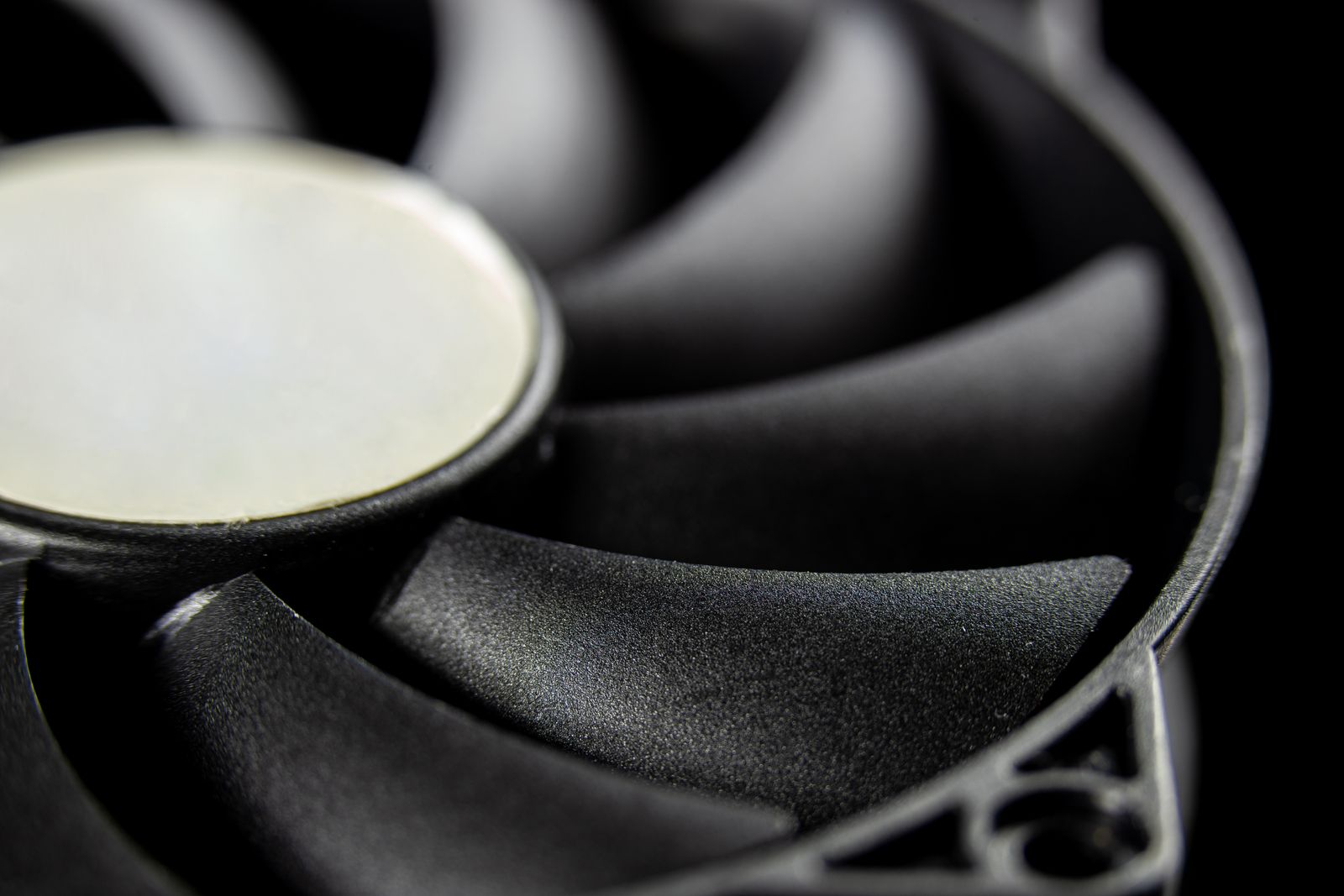
Yes, this happens. More often than you’d think.
Basic rule (memorize this):
Front fans = INTAKE (pull cool air IN)
Top fans = Usually EXHAUST (push hot air OUT)
Rear fans = EXHAUST (push hot air OUT)
If all your fans blow inward or all outward, your PC is basically a convection oven with no airflow.
Check this: Look at the arrows on the fan frame. The arrow shows the direction of airflow. Verify they’re correct. This takes 5 seconds and fixes a lot of problems.
6. Fix your fan curves
Stock fan curves are made for silence, not performance. Your fans won’t ramp up until it’s too late.
What stock curves do: Keep fans quiet at 40% until temps hit 70°C, then suddenly spike to 100%.
What you should do: Increase ramp-up so fans react faster when temps rise.
In BIOS or monitoring software:
- Open CPU/GPU fan curve settings
- Start at 30°C with fans at 30%
- Increase curve so fans ramp up gradually
- At 60°C, fans should be at 50%
- At 75°C+, fans should be at 80%+
Yes, it’ll get louder. But you’ll keep your FPS and your hardware will live longer. Trade acceptable.
7. Check if your AIO pump is dying
If you use liquid cooling, the pump is critical. If it dies, you’re cooking your CPU in minutes.
Warning signs:
- Grinding or squealing noises from the pump
- Pump speed stuck at very low RPM (should be 2000-4000)
- Temperature spike for no reason
- One tube warm, one tube completely cold (should both be warm)
Quick test: Feel the inlet and outlet tubes. The inlet should be cool, the outlet should be warm. If both are cold or both are the same temp, your pump isn’t circulating water.
If your pump is dying: Replace it ASAP. A dead AIO pump is a ticking time bomb for your CPU.
Troubleshooting flowchart
Start here:
1. Check temps. Hot? Go to step 2. Not hot? You’re not throttling.
2. Open case. Can you see dust everywhere? Clean it (step 3).
3. Check fans. Are they facing the right way? Fix if not (step 5).
4. Feel cooler/AIO tubes. Are they hot? If not, you have contact issues or pump problem (step 4 or 7).
5. Temps still high? Boost fan curves (step 6).
6. Still throttling? You might have a defective cooler. Replace it.
Tools you’ll need
Thermal paste ($5-10): Arctic MX-6, Noctua NT-H2, Grizzly Kryonaut
Compressed air ($5-8): For cleaning dust without touching components
Isopropyl alcohol ($3-5): To clean old thermal paste
Soft brush ($2-5): For stubborn dust in cooler fins
Total investment: ~$20. Way cheaper than replacing your CPU.
Final thoughts
Thermal throttling feels scary at first, but it’s one of the easiest PC problems to fix.
Work through the checklist above. 90% of the time it’s dust, fans facing the wrong way, or old thermal paste. Fix those three things and your rig will breathe again.
Your PC wants to run cool. You just need to let it.
Building from scratch? Start with our complete gaming PC build guide for the full part-by-part breakdown.
Frequently Asked Questions
What temperature counts as thermal throttling?
Generally 90°C+ for CPUs and 85°C+ for GPUs under sustained load, though the exact threshold varies by chip.
What’s the fastest way to check if I’m throttling?
Run a monitoring tool like HWiNFO64 during a game session and watch for clock speed drops that line up with temperature spikes.
Can bad cable management alone cause throttling?
Yes — blocked airflow paths from messy cables are a surprisingly common, easy-to-fix cause of thermal throttling.