Benchmarking is one of those things people pretend to understand-but when you actually ask them what 1% lows are, they suddenly need to “go AFK real quick.”
Let’s fix that. By the end of this guide, you’ll know how to benchmark your PC like a pro and actually interpret the numbers. No guessing, no excuses.
Step 1: Use the same scenario every time
The biggest mistake beginners make is testing different scenes every run. Your FPS will vary wildly, and your results will be meaningless.
Pick ONE thing and repeat it exactly:
- One area (same location in the map)
- One fight (same enemy scenario)
- One driving route (same path)
- One benchmark level (same built-in benchmark)
Consistency = accuracy. If you change the scenario between tests, your numbers are useless.
Step 2: Track three numbers (not just FPS)
Raw FPS is cool, but it doesn’t tell the whole story. A game with 200 FPS average can feel worse than a game with 120 FPS if its lows are garbage.
The big three metrics you need to understand:
| Metric | What It Means |
| Average FPS | Overall speed—your “typical” FPS during the test |
| 1% lows | Smoothness—how often you dip below smooth gameplay |
| 0.1% lows | Stutters—the worst moments, micro-freezes you actually feel |
Example: Game A: 200 average FPS, 80 FPS 1% lows vs Game B: 120 average FPS, 110 FPS 1% lows. Game B feels smoother even though it’s slower. That’s because lows matter more than averages.
Step 3: Close background stuff
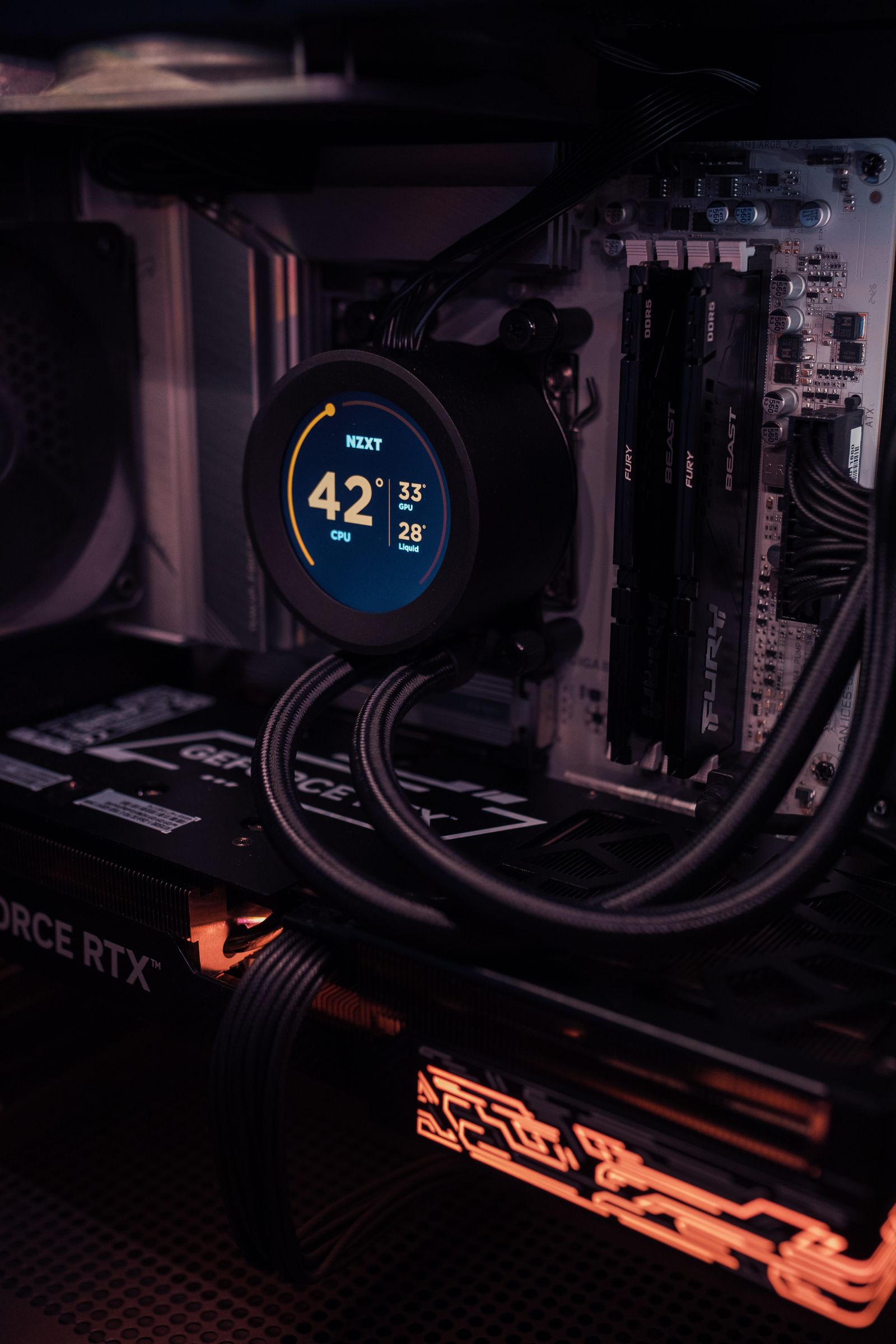
Benchmarking with Chrome open in the background is the fastest way to tank your results. Every background process eats CPU and GPU cycles.
Before testing, close:
- Browsers and tabs
- Discord, Slack, and chat apps
- Overlays (OBS, GeForce Experience overlay)
- Windows updates (disable if possible)
- Game launchers (Steam, Epic in the background)
- Antivirus scans
You want your PC focused purely on the game. Use Task Manager to check what’s running. If it’s not gaming-critical, close it.
Step 4: Test multiple games
One game cannot represent your entire system. A card might crush esports titles but struggle with AAA open-worlds. You need a realistic picture.
Choose a mix of:
Esports title: Valorant, CS2, Apex Legends-CPU-heavy, low VRAM
Open-world game: Baldur’s Gate 3, Starfield-GPU and CPU heavy
Strategy game: Total War, Civilization-CPU-heavy, simulation-heavy
AAA AAA title: Cyberpunk 2077, Alan Wake 2-GPU-heavy, ray tracing
This mix gives you a realistic performance picture across different workloads.
Step 5: Understand what your results mean
Here’s the cheat sheet for interpreting your numbers:
| Result | What It Means |
| Higher average FPS | System is faster overall |
| Stable 1% lows | Gaming feels smooth and responsive |
| Bad 0.1% lows | You’ll experience micro-stutters and hiccups |
| Big variation between runs | System is inconsistent-check for background processes |
Pro insight: If your lows are improving more than your average FPS, that’s a HUGE win. Smoothness beats peak FPS every single time. A game that feels smooth at 100 FPS is better than one that stutters at 144 FPS.
Step 6: Don’t chase “perfect” numbers
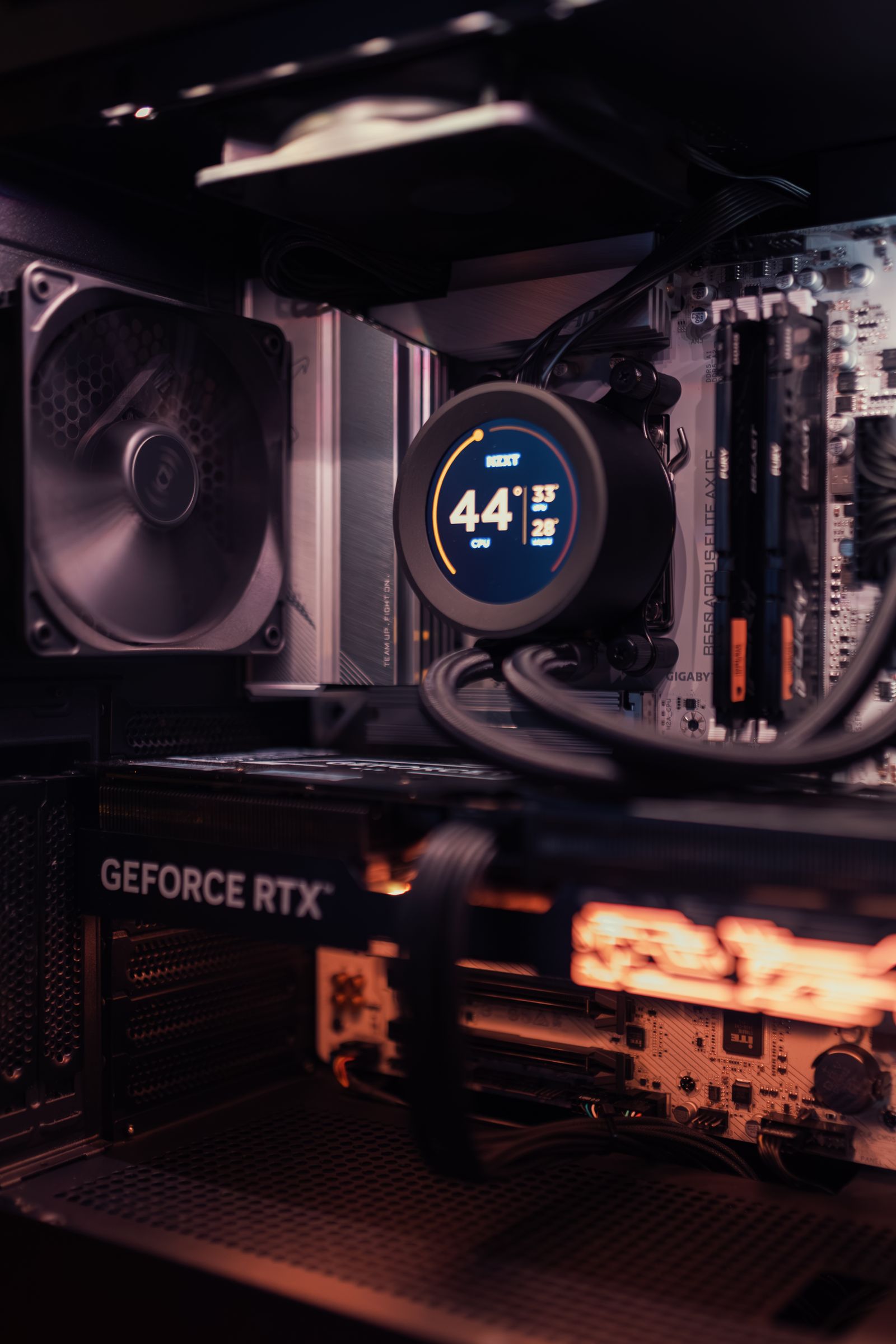
No two runs are identical. Your system has OS background tasks, driver variations, thermal fluctuations. A 1–3% variation between runs is totally normal and expected.
Benchmarking is about trends, not perfection.
What matters:
Run 1: 145 FPS | Run 2: 142 FPS | Run 3: 147 FPS = CONSISTENT (average ~145)
What’s wrong:
Run 1: 145 FPS | Run 2: 120 FPS | Run 3: 155 FPS = INCONSISTENT (something’s interfering)
If you see huge variation, investigate: Are you running the same scenario? Is something running in the background? Is your system thermals changing between runs?
Practical benchmarking workflow
Setup phase (one time)
- Close ALL background apps
- Pick your test game and scenario
- Set your graphics settings (and lock them)
- Note your resolution and refresh rate target
- Close overlays
Testing phase (repeat 3 times)
- Wait 5 minutes for system to cool and stabilize
- Open game and load the exact scenario
- Record FPS for 2-3 minutes of gameplay
- Note average, 1%, and 0.1% lows
- Exit game
Analysis phase
Average your three runs. If any run is wildly different, discard it and run again. This gives you your true performance baseline.
Tools that make benchmarking easy
You don’t need expensive software. Free tools work great:
FrameView (NVIDIA): Logs FPS data for any game, exports to CSV
FCAT (AMD/HWiNFO): Hardware-level monitoring, very accurate
MSI Afterburner: Shows FPS, GPU/CPU temps, power draw-overlay included
Built-in benchmarks: Most modern games include benchmark modes (use these first)
Final thoughts
Benchmarking like a pro is simple: Be consistent, track the right metrics, close distractions, and don’t obsess over single-digit variations.
Once you have your baseline numbers, you can confidently answer questions like: “Did my upgrade actually help?” or “Why does this game feel choppy even at high FPS?”
Numbers don’t lie. But only if you benchmark correctly.
Building from scratch? Start with our complete gaming PC build guide for the full part-by-part breakdown.
Frequently Asked Questions
Why do my FPS numbers vary so much between tests?
Usually because the test scenario changes between runs. Repeatable benchmarking means testing the exact same scene, fight, or route every time.
What should I track besides average FPS?
1% lows and frame time consistency — these numbers reveal stutter that a simple average FPS figure can hide entirely.
What’s a good free benchmarking tool?
3DMark is the industry-standard benchmark for comparing hardware performance consistently across different systems.