Building a gaming PC in 2026 sounds simple until you actually try it: forty browser tabs, three conflicting “best build” videos, and a nagging feeling you’re about to buy the wrong PSU. This guide is the fix. It’s the hub for every part decision that goes into a gaming PC — CPU, GPU, RAM, storage, cooling, case, peripherals — with a straight answer for each one and a link to the deep-dive if you want more.
You don’t need to read every linked guide before you buy anything. Read this page top to bottom, make your calls section by section, and come back to the deep-dives only for the parts you’re still unsure about. We’ve built dozens of these across every budget tier on the Gamtix bench — the advice below reflects what actually held up over months of use, not just what looked good on a spec sheet.
Plan Your Build Around a Budget, Not a Parts List
The single biggest mistake first-time builders make is picking a GPU first and figuring out the rest later. Start with a total budget instead, then let that number decide everything downstream. Three tiers cover almost everyone in 2026:
- $800–$1,000 — solid 1080p, high refresh rate, no compromises on the parts that matter (PSU, cooling).
- $1,200–$1,600 — the 1440p sweet spot most builders should actually target.
- $2,000+ — 4K or no-compromise 1440p with headroom for the next 3–4 years.
Whatever your total, split it the same rough way — the ratio matters more than the raw numbers:
| Component | % of total budget |
|---|---|
| GPU | 30–35% |
| CPU | 12–15% |
| Motherboard | 8–10% |
| RAM | 7–9% |
| Storage | 7–9% |
| PSU | 7–9% |
| Case + cooling | 10–12% |
The most common way this goes wrong: spending 45%+ on the GPU and starving the PSU or case budget, which is exactly how you end up with a powerful graphics card choking on bad airflow or a supply with zero headroom.
If you want the full breakdown of a real $1,500 station — PC, monitor, and peripherals — we’ve already mapped it out in our budget gaming setup guide. And if you’re torn between building it yourself or buying something ready-made, read prebuilt vs custom before you commit either way. Prefer a complete parts list over general advice? Our $1,000 RTX 4060 build shows exactly what a real budget-tier build looks like.
CPU: Intel or AMD?
In 2026, this isn’t the holy war it used to be. AMD’s X3D chips (Ryzen 7 9800X3D and friends) still lead pure gaming benchmarks thanks to their oversized cache, while Intel remains a strong, often cheaper pick for mixed gaming-plus-productivity builds. Don’t overthink this one — the gap between “best” and “great” CPU choice today is a few percent, not a tier.
We go deep on clock speed vs. cache and give platform-specific picks in Intel vs AMD CPUs for gaming.
GPU: The Decision That Actually Matters
Your GPU decides your resolution ceiling more than any other part. Buy for the resolution you actually play at, not the one you aspire to: a $2,000 build with a mismatched GPU-to-monitor pairing is just a badly spent $2,000.
| Resolution | 2026 sweet spot tier |
|---|---|
| 1080p | RTX 5060 / RX 9060-class |
| 1440p | RTX 5070 / RX 9070-class |
| 4K | RTX 5080 / 5090-class |
For the full resolution-by-resolution breakdown, VRAM guidance, and power draw numbers, see our GPU buyer’s guide 2026. If you’re specifically weighing NVIDIA against AMD’s current lineup, NVIDIA vs AMD in 2026 breaks it down by price tier.
RAM: Capacity Beats Speed Almost Every Time
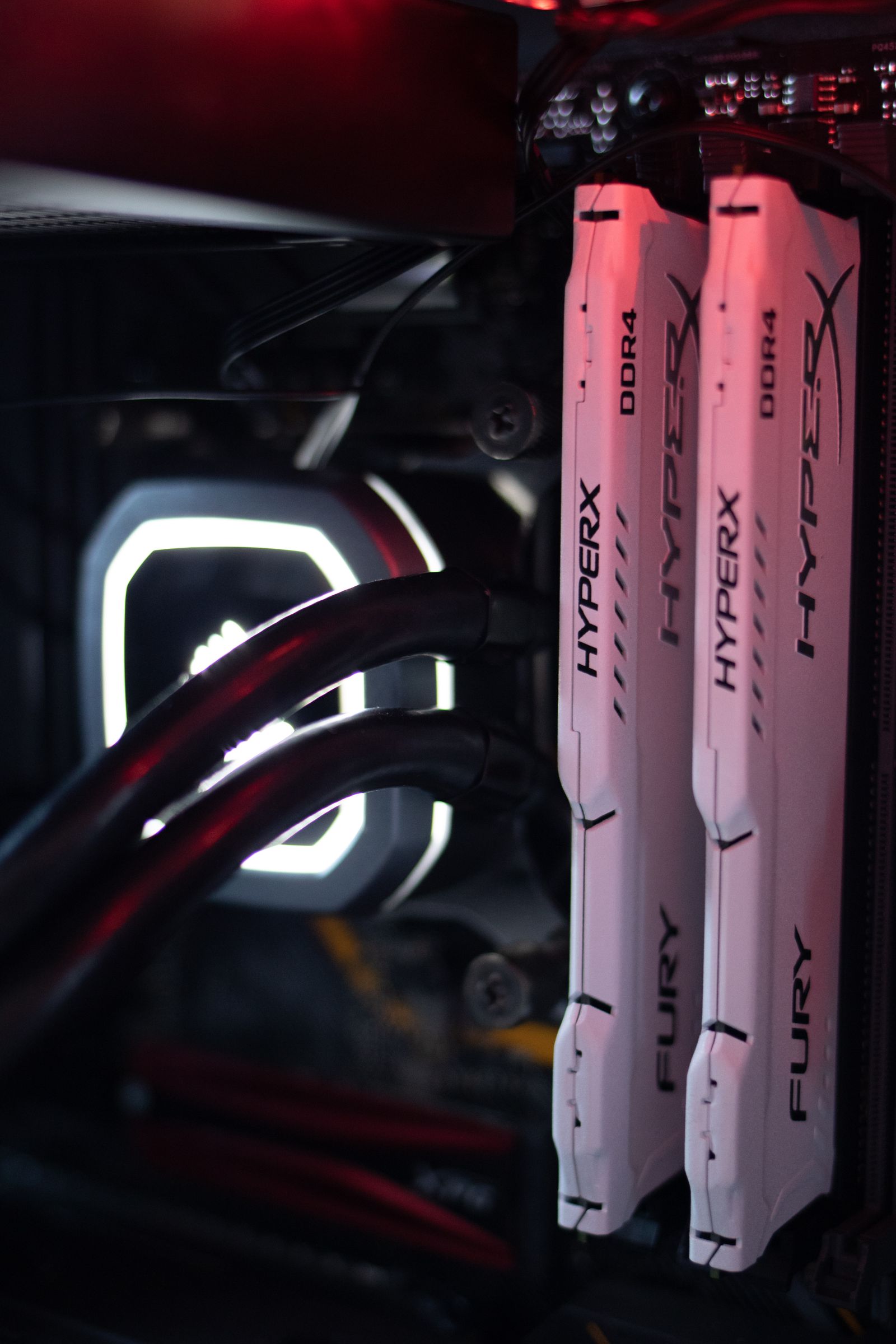
32GB is the realistic 2026 baseline for gaming plus normal background load (Discord, a browser with too many tabs, maybe an overlay or two). 16GB still runs most games fine, but it’s no longer the comfortable margin it was a few years back. Chasing extra MHz above your platform’s sweet spot matters a lot less than most marketing suggests.
Still deciding between DDR5 and DDR4 for a budget build or an upgrade? We ran the real-world numbers in DDR5 vs DDR4 in gaming.
Storage: What You Actually Need
A single 1TB NVMe SSD is the minimum sane starting point in 2026 — modern game installs routinely eat 60–150GB each. If your budget allows it, go 2TB and skip the “which files do I delete this month” game entirely. You don’t need the fastest PCIe Gen5 drive on the shelf for gaming specifically; sequential read speed past a certain point stops translating into noticeably faster load times. Capacity is the number that actually changes your day-to-day experience. For the full capacity math and Gen4-vs-Gen5 breakdown, see our SSD & NVMe buying guide.
Motherboard: Buy for the Platform, Not the RGB
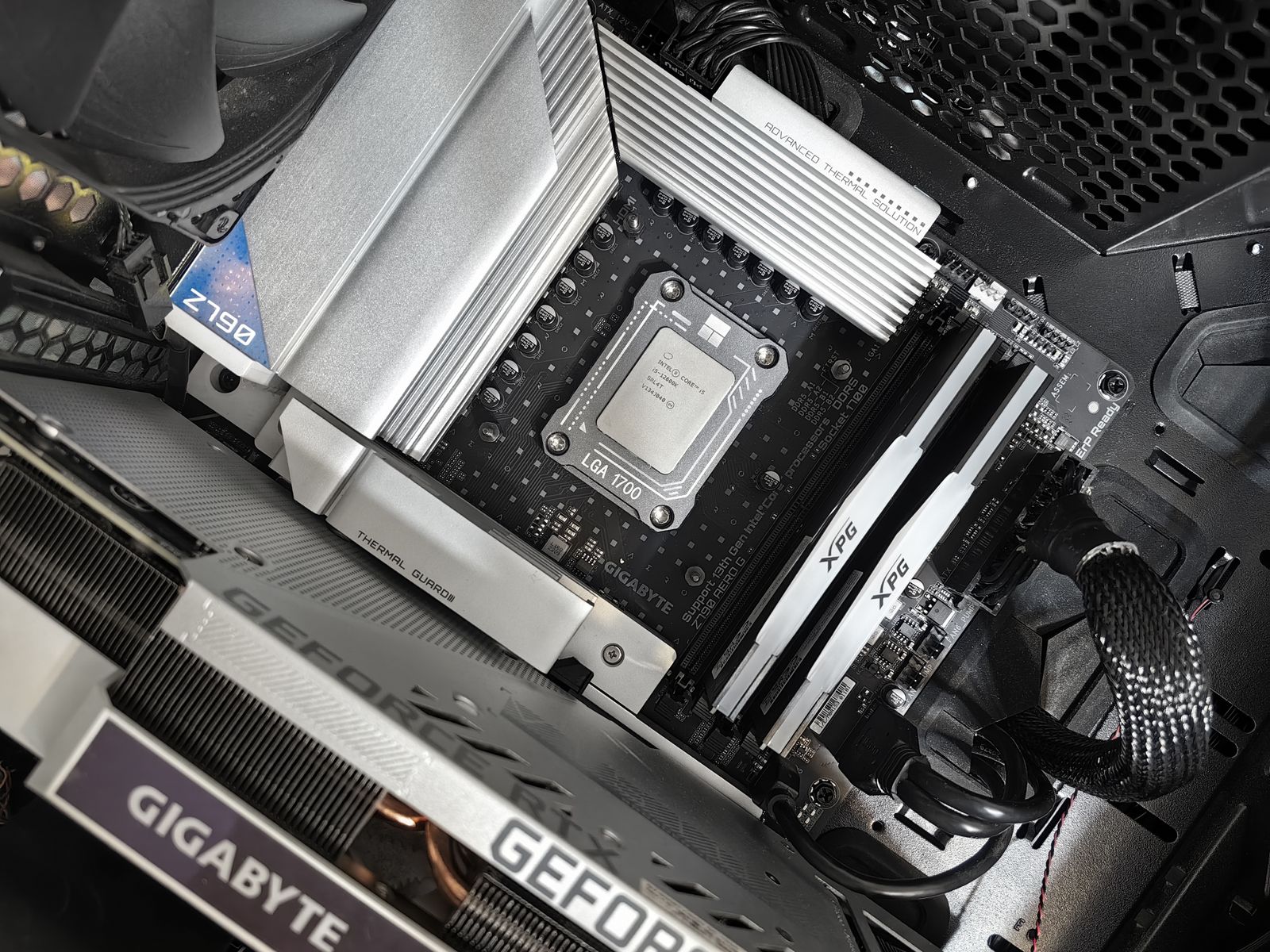
Your motherboard’s job is compatibility and headroom, not benchmark numbers. Match the chipset to your CPU choice, make sure it supports the RAM speed you’re planning to run, and check it has enough M.2 slots for your storage plans before you fall for a lighting pattern. Mid-range boards from any major brand are stable enough for gaming — the extreme high end is for overclockers pushing records, not for a gaming build.
PSU: Don’t Guess, Calculate
Undersizing your power supply is one of the few build mistakes that can actually damage other parts. The math isn’t complicated once you know what to look at: start with your GPU’s rated draw, add headroom, and don’t cheap out on certification tier.
Full step-by-step math and 2026 wattage recommendations by GPU tier: PSU sizing made easy.
Cooling: Air vs AIO
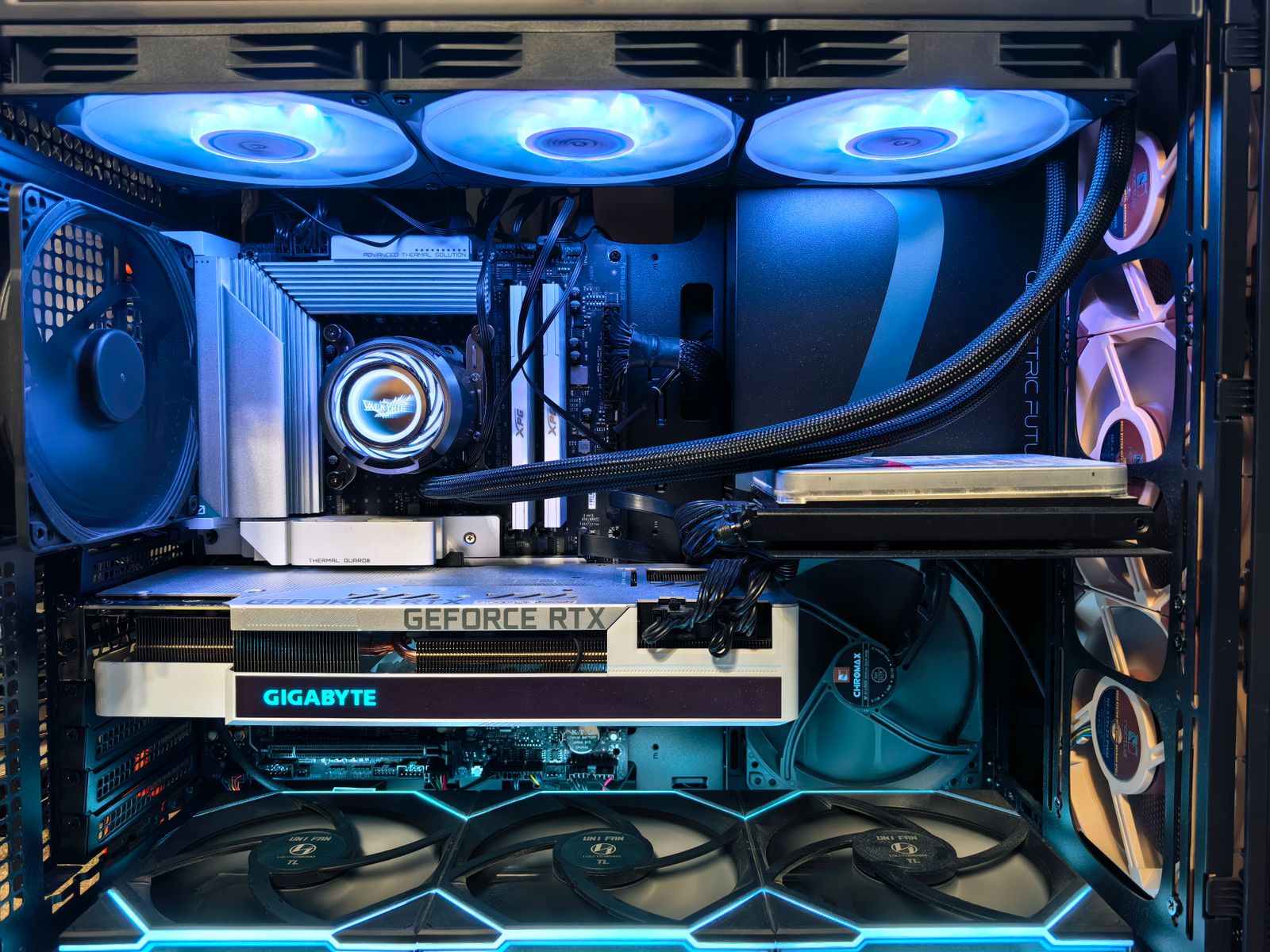
Air cooling is cheaper, has zero leak risk, and lasts a decade with no maintenance. AIO liquid coolers look better, run quieter at the same thermal load in some cases, and simplify high-end CPU cooling — but add a pump that can eventually fail. Neither is objectively “correct”; it depends on your case airflow and how much you value aesthetics over simplicity.
Real temperature and noise data for both approaches: Air vs AIO cooling.
Case & Airflow: The Part People Underrate
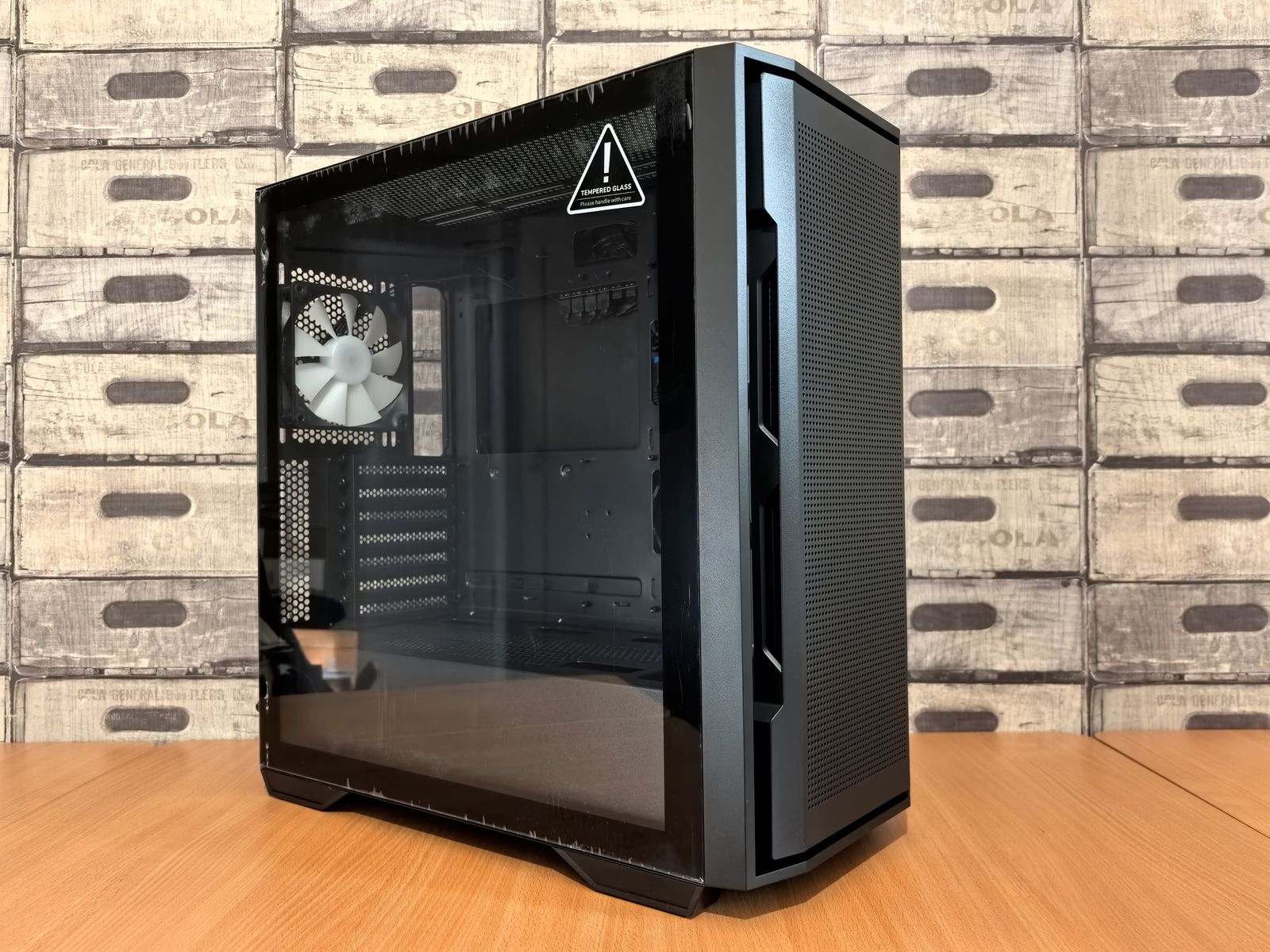
A mesh-front case with a sane fan layout (front intake, rear/top exhaust) will drop your temperatures more than most cooler upgrades will. Once the case is picked, don’t undo the airflow gains with a rat’s nest of cables blocking your fans — cable management alone is worth 3–8°C in real testing. If quiet operation matters as much as thermals to you (streamers, take note), see our Silent Beast quiet build.
See our current picks in top 5 PC cases of the year, and don’t skip cable management like a pro once everything’s installed.
Peripherals You’ll Actually Use Daily
Your PC is only as good as what you interact with it through. A 1440p 144Hz+ monitor is the current sweet spot for most players — see the full resolution-vs-refresh breakdown in our monitor buyer’s guide. For input devices, don’t sleep on switch type when picking a keyboard (best mechanical keyboard switches) and decide early whether you want an all-in-one headset or headphones plus a standalone mic (headset vs headphones + mic).
Step-by-Step: First Boot Checklist
- Install the CPU, RAM, and M.2 storage on the motherboard before it goes in the case — it’s dramatically easier on a table.
- Mount the motherboard, then the PSU, then the GPU last — it’s the part most likely to block your cabling if installed early.
- Connect the 24-pin, CPU power, and GPU power cables before anything else — these are the ones that actually stop a boot if missed.
- First boot: go straight into BIOS, confirm your RAM is running at its rated speed (XMP/EXPO isn’t on by default), and check all fans are spinning.
- Install Windows, then GPU drivers straight from the manufacturer — skip whatever driver Windows Update suggests first.
After the Build: Benchmark, Tune, and Fix Bottlenecks
Don’t stop at “it boots.” Confirm it’s actually performing where it should before you call the build done:
- Run repeatable benchmarks instead of eyeballing FPS — see benchmark like a pro.
- If temps climb and FPS drops mid-session, work through these 7 thermal throttling checks before assuming a part is faulty.
- Once you’re confident in your thermals, a safe GPU overclock is free performance — see our beginner’s overclocking guide.
- Finally, apply these Windows 11 gaming tweaks — free FPS with zero part cost.
How Long Will This Build Stay Relevant?
A mid-range 2026 build (1440p tier) should comfortably hold up for 3–4 years of high settings before you need to touch the GPU. The parts that age fastest, in order, are: GPU, then CPU, then RAM capacity. The parts that barely age at all: PSU, case, and cooling — which is exactly why it’s worth spending real money on them upfront instead of treating them as an afterthought.
Practically, that means the smartest upgrade path is: buy a slightly stronger PSU and case than you need today, then upgrade GPU and RAM later without touching either. It’s the difference between a build that evolves with you and one you end up replacing wholesale in three years.
Frequently Asked Questions
How much should I spend on my first gaming PC?
$1,000–$1,200 gets you a genuinely solid 1080p-to-entry-1440p build in 2026 with no corners cut on PSU or cooling. Going lower usually means sacrificing the parts that protect your other components, which costs more later.
Is it cheaper to build a gaming PC than to buy a prebuilt?
Usually yes, by 10–15% for the same specs, but not always — prebuilts sometimes win during GPU price spikes. See our full prebuilt vs custom comparison for a real cost example.
What’s the most common mistake first-time builders make?
Undersizing the PSU or buying a mismatched GPU-to-monitor pairing. Both are easy to avoid by deciding your resolution and wattage needs before you buy anything else.
Do I need liquid cooling for a gaming PC?
No. A quality air cooler handles every current gaming CPU without issue. AIOs are a preference for looks and slightly quieter operation under sustained load, not a requirement.
How long should a gaming PC build take?
Budget 2–4 hours for a first build, including cable management. Rushing cable management is the step builders regret most once they see the temperature difference.